29 June 2026 · By Lou
Kick Overlays: Setup + Best Packs
Kick has gone from a newcomer to a platform with a serious audience in a short time. Here's what you need to know about overlays.

Kick has gone from a newcomer to a platform with a serious audience in a short time, and a lot of streamers now run it alongside Twitch or have moved over entirely. The draw is real: a friendlier revenue split and easier monetization for smaller channels. If you're setting up on Kick, here's what you need to know about overlays, including the good news that you probably don't need to buy anything new.
Do Twitch overlays work on Kick?
Yes. This is the part that confuses people, so let's be clear. Overlays are graphics that live in your streaming software, not on the platform. OBS doesn't care whether you're sending the stream to Twitch, Kick, or YouTube. The frame, screens, alerts, and transitions all render in OBS and get baked into the video before it leaves your computer.
So your existing Twitch overlay pack works on Kick as-is. The same goes for a pack you buy labeled "Twitch overlay," it's really just a stream overlay. The Twitch branding is marketing, not a technical limit.
What is different on Kick
A few things do change, and they're mostly about alerts and chat rather than the overlay graphics:
- Alerts and events. Twitch-specific alert tools key off Twitch events like subs and bits. On Kick, you'll want an alert setup that supports Kick's events. Several alert services now do, so check that your tool lists Kick before relying on it.
- Chat box. If you show chat on screen, point your chat widget at your Kick chat rather than Twitch.
- Panels. Kick's channel page has its own layout for info sections, so you upload panel images there the same way you would on Twitch, just in Kick's settings.
The visual overlay itself, the part people mean when they say "overlay," carries straight over.
Setting up overlays on Kick, step by step
If you've set up overlays for Twitch, this is the same process. If you haven't, the short version:
- In OBS, build your scenes (Starting Soon, Live, BRB, Ending).
- Add your overlay graphics as Image or Media sources, your game and webcam as captures.
- Add alerts as a Browser source, using an alert service that supports Kick events.
- Point your chat widget at Kick chat.
- In OBS settings, set the stream service to Kick and paste your stream key from your Kick dashboard.
- Upload your panel images on your Kick channel page.
Our full walkthrough in How to Set Up Twitch Overlays in OBS applies almost line for line, just swap the stream destination and your alert source.
Best overlays for Kick
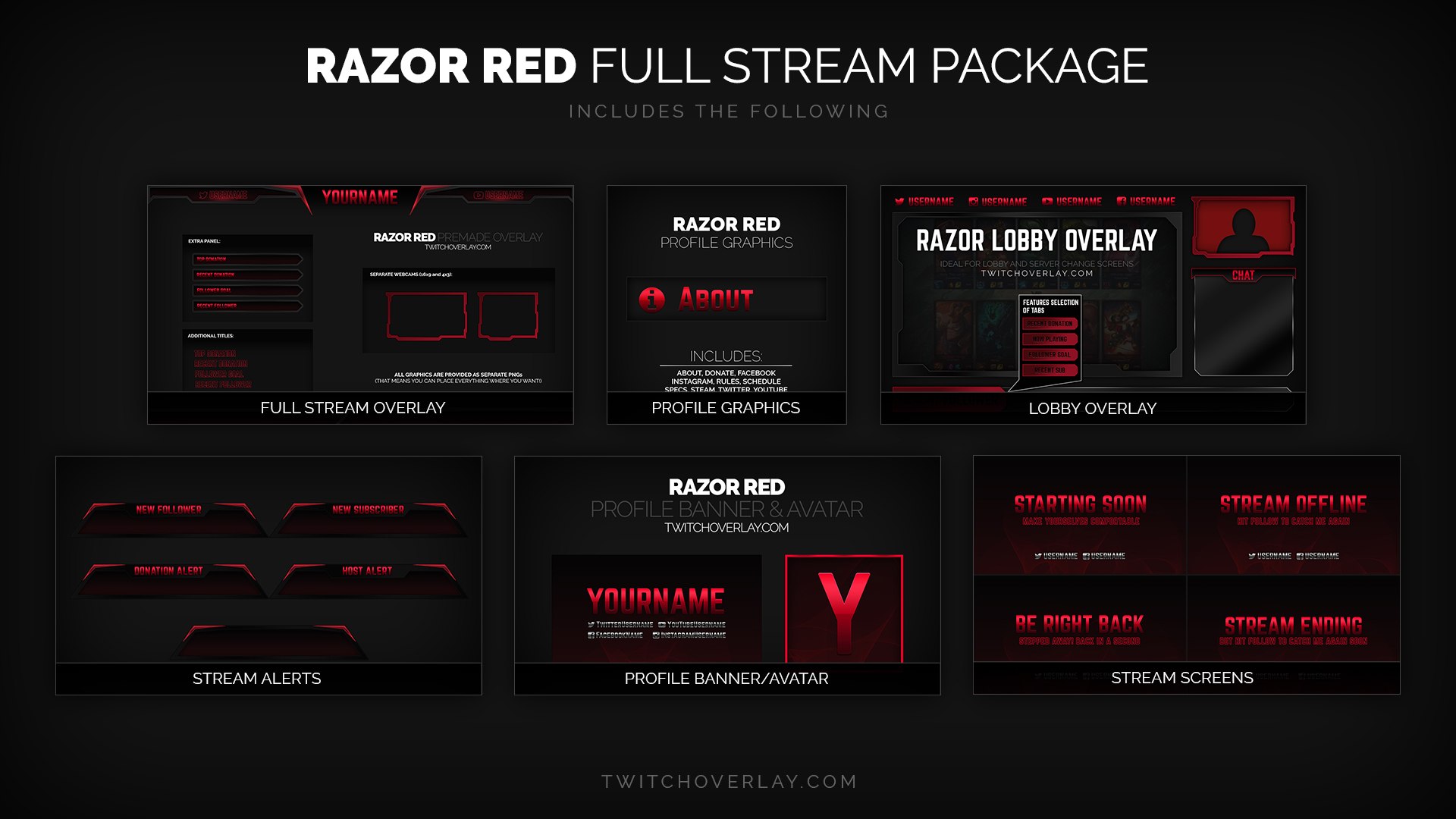
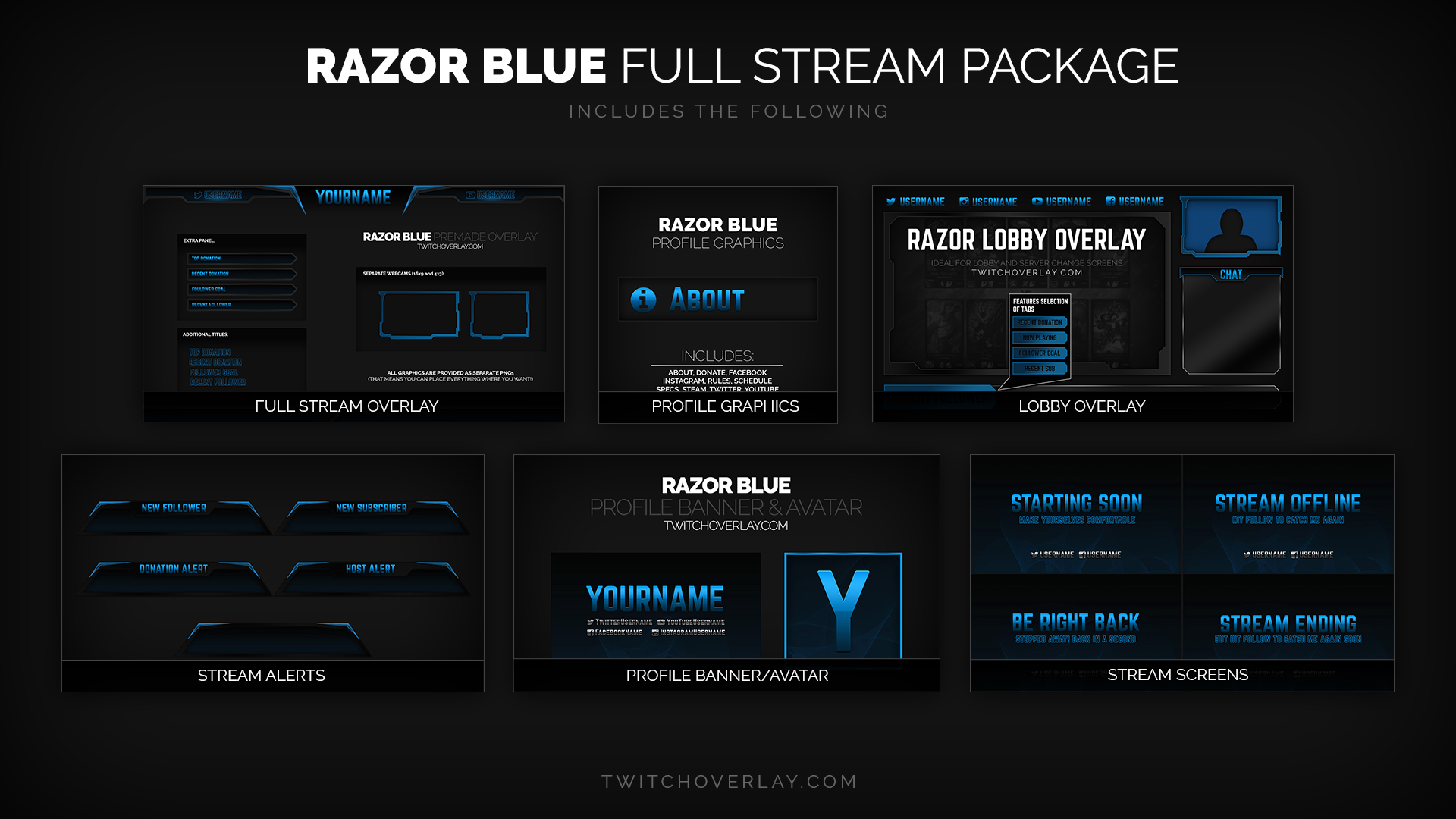
Since any stream overlay works on Kick, your options are the whole overlay market. Pick on style and completeness, not platform labels. A few directions:
- Free to start: grab a free pack and get live, then upgrade once you're growing.
- One look you'll keep: a single premium pack from a store with a style you like.
- A distinct identity: Kick's discovery still rewards channels that stand out, so a memorable look pays off. Anything with a clear point of view reads very differently from the default gamer gradient.
Why this matters now
Kick's growth means its directories are less crowded than Twitch's in a lot of categories, which gives a polished, distinctive channel a better chance of getting noticed. Looking finished is cheap leverage when the field is thinner.
If you want a complete, matching set that works on Kick and Twitch both, our free downloads are a good test. They run through the exact setup above, and the full catalog covers every screen, alert, and transition in one subscription if you want to go further.
Browse our free downloads and run one on Kick tonight. See the all-access plan for the full matching set.
Browse free downloads See pricing
Newsletter
Never Miss A New Overlay
New overlays, alerts and stream tips land regularly. Leave your email and we'll send the good ones straight to your inbox.
