12 July 2022 · By Lou
Top 5 .OVERLAY Import Files for Streamlabs Desktop
Our.OVERLAY import files for Streamlabs Desktop provide a really easy way to get setup in a flash, and at Twitch Overlay we're now providing those import files

What is a .OVERLAY import file?
The .OVERLAY import file is a file type used with Streamlabs Desktop, it stores an entire, fully-arranged stream overlay ready to apply in one click. Imagine your stream like an empty room in a newly built house. You'd have to paint the walls, lay the floor, fill the room with furniture, shelves, all kinds of things to bring that room function and personality - that whole process can be quite time-consuming. Now imagine a box could arrive that you just place in the middle of that room, press a button, and it instantly does all those jobs for you. In a nutshell, that's what a .OVERLAY import file is for your stream.How do I use .OVERLAY import files with Streamlabs Desktop?
Setup in Streamlabs Desktop (formerly known as "Streamlabs OBS") is so easy we've made a 17 second video to summarize it:So, what are we seeing here, here's the steps (with Streamlabs Desktop open of course):
- Click the cog in the bottom-left corner
- Select Scene Collections from the sidebar
- Hit the Import Overlay File button
- Navigate to the .OVERLAY file on your hard drive, and select
- Enjoy your new stream overlay!
Can I use a .OVERLAY import file with OBS Studio, OBS.Live, and other streaming software?
The short answer is no, but if you're an OBS Studio user then there's a kinda long-winded and janky way of getting a setup imported. Here's the steps:- Install Streamlabs Desktop (I know, this isn't a joke, bear with me)
- Follow the import process detailed above for Streamlabs Desktop
- Close Streamlabs Desktop
- Open OBS Studio
- Select Scene Collection > Import from the top bar
- Now normally (hopefully) a panel should appear showing you Scene Collections it has detected in Streamlabs Desktop, the .OVERLAY you imported to Streamlabs Desktop in step 2 should hopefully be among those listed.
- Check the box next to the scene you're looking for, and hit Import
The best .OVERLAY import files for Streamlabs Desktop
With the setup process out the way, it's time to get into it and take a look at the top 5 .OVERLAY import files for Streamlabs Desktop that you can find right here at Twitch Overlay.Rusted Titan - Fire Stream Package
At number 5 it's a fully animated stream package that brings molten lava and hellfire to your stream. This import file brings a number of firey elements to your stream including animated stream alerts, webcam border, stream screens and more.
Shark Stack - Beach Stream Package
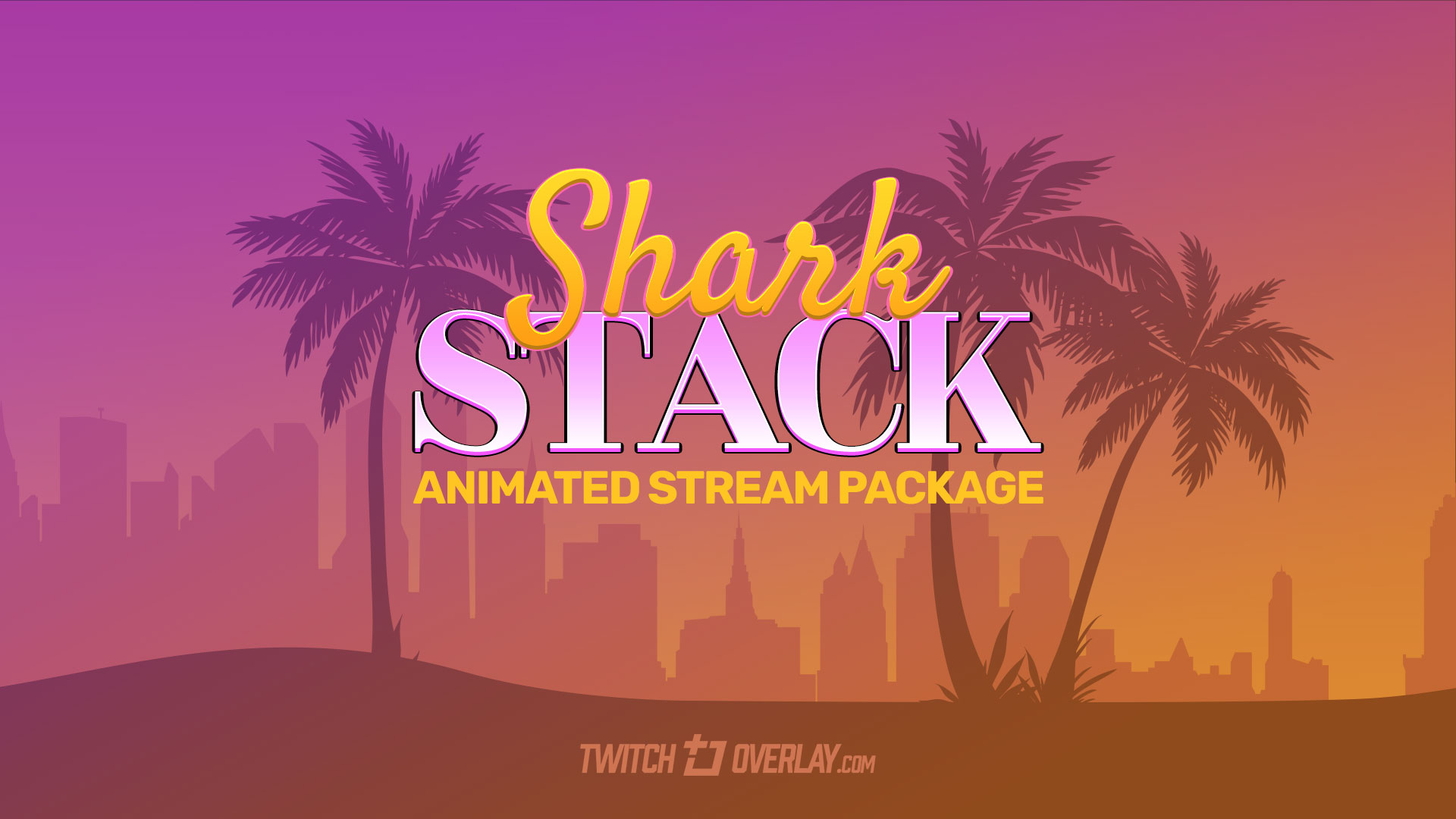 Shark Stack is designed with west coast Cali vibes in mind. Bring a piece of Venice Beach to your stream with palm tree stream screens and stream alerts, and a mellow purple and orange color scheme from top to bottom.
Gothicon - Gothic Stream Overlay
Gothic and grimdark elements make up this wholly unique stream overlay. Gothicon features misty and bottle green webcam borders, stream alerts and info panels that give your entire stream a bewitching feel.
Pure Valor - Glitchy Twitch Overlay
In runner up spot is Pure Valor, an overlay with glitchy and kinetic elements that give your stream a little life without taking the focus away from content. This overlay comes in 2 colorways, a blue & burned orange combo, or deep purple & green.
VX Pro - Colorful Twitch Packages
A long-running favourite that tops every year end list, the VX Pro collection couples bold and eye-catching colorways with subtle animations to make your stream pop while keeping you and your media front and center. The most popular colorway is Chroma, giving a kaleidoscopic RGB package of overlay, alerts, and stream screens.
Final Thoughts
This is just a small selection of the .OVERLAY import files for Streamlabs desktop we've got available here. Almost every stream overlay or package in the Premium Downloads section of the site features .OVERLAY import files as standard, so take a look for yourself. We feature some of the most diverse styles available anywhere, so you're likely to find exactly what you're looking for. Be sure to check the Download Details panel on any item page to double-check if the dowload includes .OVERLAY files.Newsletter
Never Miss A New Overlay
New overlays, alerts and stream tips land regularly. Leave your email and we'll send the good ones straight to your inbox.
